

Base station for DJI RTK drones
This guide explains how to configure your GEOSTIX receiver as a base station to provide RTK corrections to a DJI drone via the Wi-Fi from the GEOSTIX.
Configure the GEOSTIX as a base station
Section titled “Configure the GEOSTIX as a base station”-
Connect to the GEOSTIX via the GEOSTIX APP.
Launch the app and select your GEOSTIX receiver from the list of available devices. See the quick guide for help on how to connect to a GEOSTIX.
-
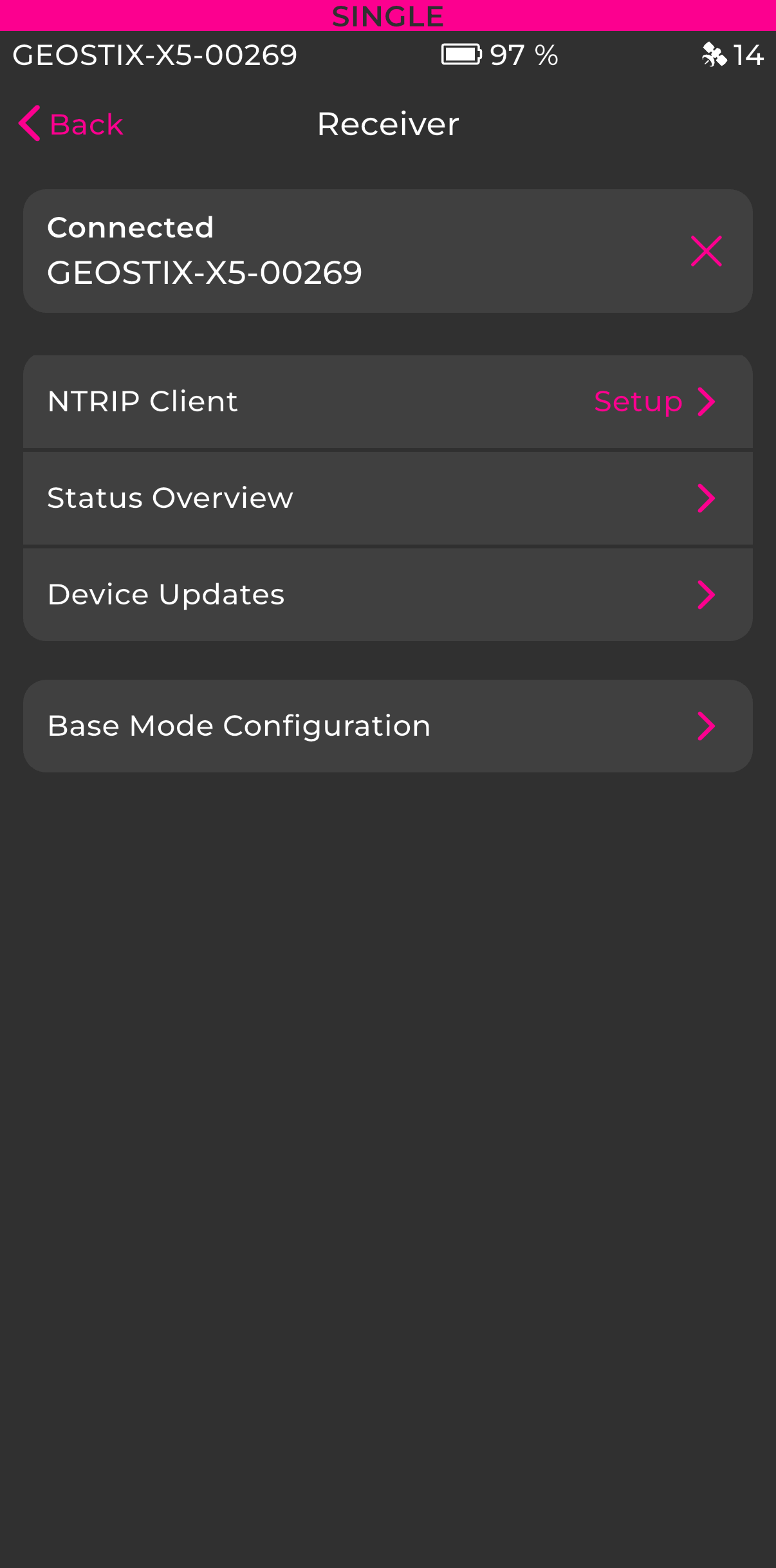
Open the base mode configuration.
From the “Receiver” screen, tap Base Mode Configuration.
-
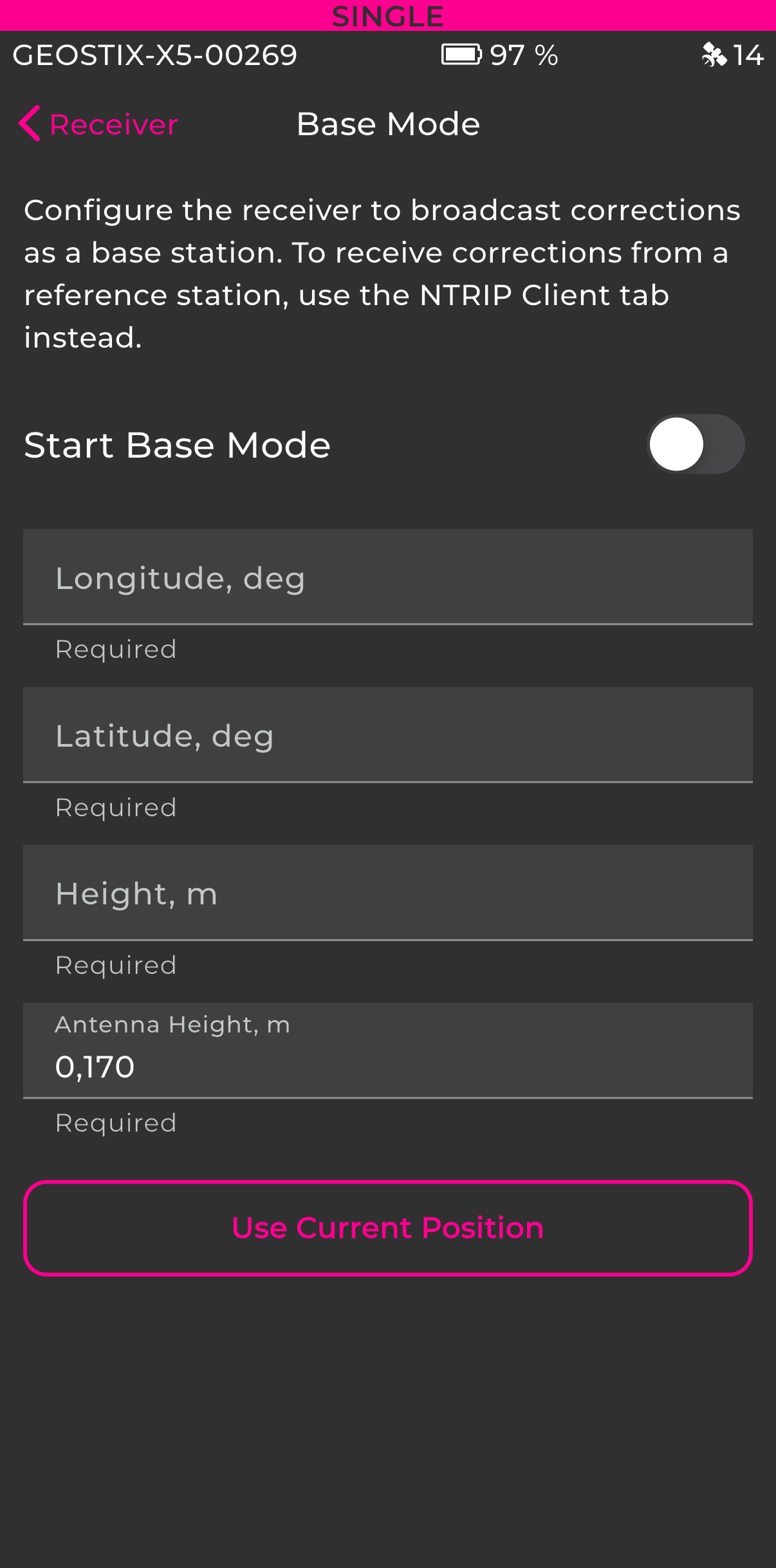
Enter the base station coordinates.
You can manually enter the known coordinates of your station point (longitude, latitude, height) or tap Use current position to use the current GNSS position.
Also enter the antenna height (height of the GEOSTIX above the ground).
-
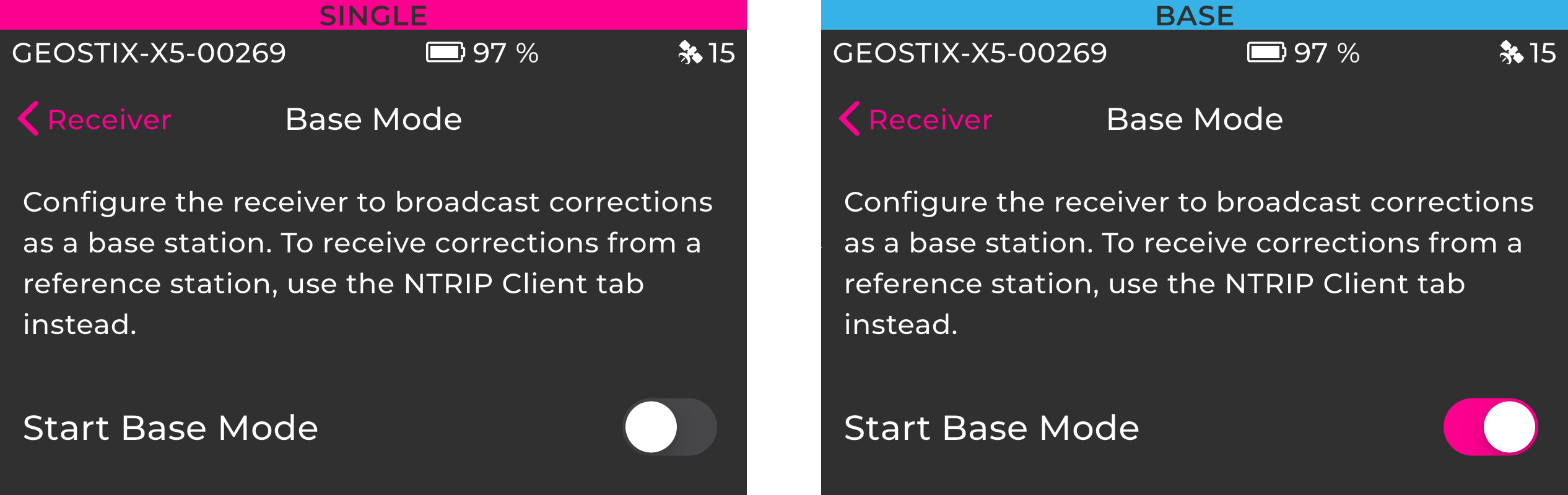
Enable base mode.
Toggle the Start Base Mode switch. The status bar at the top of the screen changes from SINGLE to BASE, confirming that the GEOSTIX is broadcasting corrections.
Connect the DJI remote controller to the GEOSTIX Wi-Fi
Section titled “Connect the DJI remote controller to the GEOSTIX Wi-Fi”-
Open the Wi-Fi settings on the DJI remote controller.
On the remote controller, open the network settings and connect to the Wi-Fi network from the GEOSTIX. The SSID is the full serial number of your device (e.g., GEOSTIX-X5-00269) and the Wi-Fi password is STXYYYYY where YYYYY is the serial number (e.g., STX00269).
-
Open RTK settings in the DJI app.
-
GS RTK (Phantom 4 RTK): Tap the 3-dot icon in the upper right corner, then go to the RTK Settings tab. Select Custom network RTK from the dropdown menu.
-
DJI Pilot 2 (Matrice 300/350 RTK, Mavic 3E RTK): From the flight dashboard, navigate to Drone Settings, then select RTK. Choose Custom Network RTK.
-
-
Configure the NTRIP connection.
Enter the following parameters:
Parameter Value Host geostix.localor192.168.84.1Port 2101Username geostixPassword geostixMountpoint BASE -
Start the connection.
Tap Connect (GS RTK) or Start Transmitting (Pilot 2). The RTK status should turn green, indicating that the drone is receiving corrections from the GEOSTIX.